
 Caleb Turner

I recommend beginning your project by gathering high-quality textures of various items you wish to incorporate. Searching for these images online can yield numerous options; ensure they are labeled for reuse or come from a royalty-free source.
Once you have the visuals, create a new layer in your workspace. Use the Quick Selection Tool or Pen Tool to meticulously outline the objects. This precision helps in achieving a clean look that blends seamlessly with your background.
After isolating your desired pieces, it’s time to manipulate their size and positioning. Utilize the Transform function to resize while holding the Shift key to maintain the aspect ratio. This keeps the integrity of your objects intact, avoiding any distortion.
Next, adjusting shadows can drastically enhance the realism of your scene. Create a separate layer for shadows, applying a soft brush with lowered opacity to match the light source in your background. This subtle detail will anchor the items to their surroundings and add depth to your composition.
Lastly, consider applying an adjustment layer for color balance to harmonize the overall palette. Minor tweaks can unify the elements, ensuring the final image appears coherent and visually appealing.


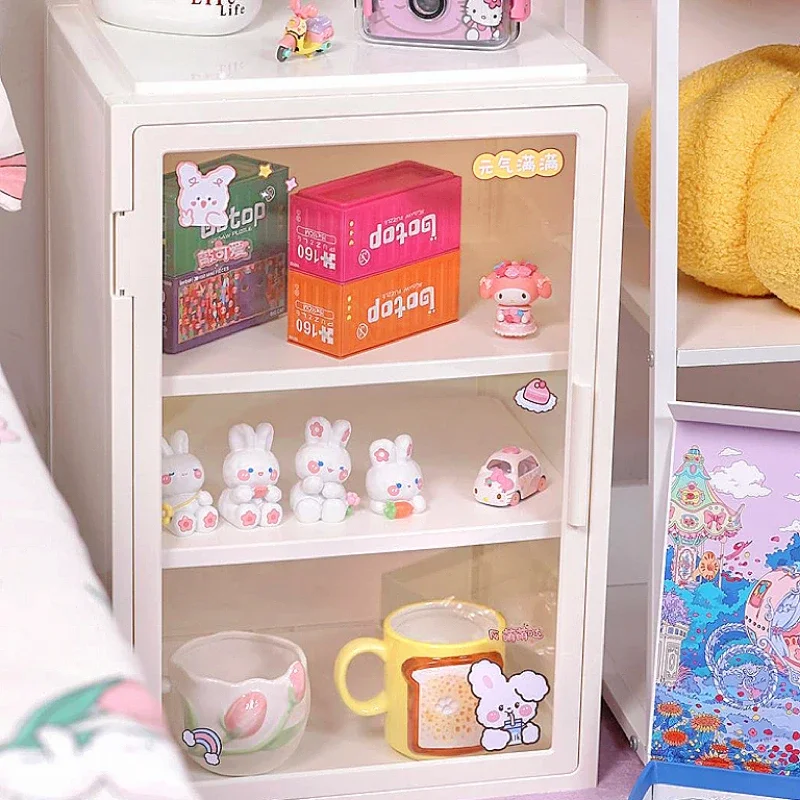

Incorporating Elements in Your Design
Begin with a high-quality image of the object you want to place within your scene. Ensure the file has a transparent background; this simplifies the blending process within your workspace. Use the selection tool to isolate the item if necessary, removing any unwanted background elements.
Positioning and Scaling
Once the object is ready, drag it into your main canvas. Utilize the transform tool (Ctrl + T or Command + T) to adjust size and orientation. Pay attention to perspective; objects closer to the viewer appear larger, thus maintaining realism.
Shadows and Lighting
To enhance authenticity, create a new layer for shadows. Employ the brush tool with a soft edge to simulate natural shadowing beneath the object. Adjust the opacity and blur settings for a more integrated look. Consider the existing light sources in your composition to guide your shadow placement.
Selecting the Right Images for Furniture
Choose visuals that resonate with your project’s theme. Opt for high-resolution images to ensure clarity and detail. Look for items that match your intended style, whether it’s modern, vintage, or eclectic. Each piece should convey the aesthetic you aim to achieve.
Criteria for Image Selection
| Criterion | Description |
|---|---|
| Resolution | Images should be at least 300 DPI for print quality or 72 DPI for web usage. |
| Lighting | Ensure the light source in the image matches the overall lighting of your composition. |
| Angle | Select images from angles that allow for easy integration into your layout. |
| Context | Choose images that provide context, indicating how the pieces fit into a space. |
| Color Palette | Images should align with your established color scheme to maintain harmony. |
Sources for Quality Images
Utilize stock photo websites or furniture manufacturer galleries for reliable images. Public domain resources can also be beneficial. When pulling visuals from online sources, ensure compliance with copyright standards. Consider using mockup templates showcasing furniture in different settings for realistic effects.
Using Photoshop Tools for Cutting Out Furniture Images
Select the “Quick Selection” tool from the toolbar. This allows for precise area marking around the object. Gently drag over the edges of your piece to highlight its form. Adjust the brush size for finer control, especially in intricate areas.
If the selection isn’t perfect, switch to the “Lasso” tool for manual adjustments. Hold down the Alt key (Option on Mac) to subtract from your selection if you pick up extra parts. For adding to your selection, simply click and drag over the desired area.
Once you’re satisfied with the selection, navigate to the “Select and Mask” feature. Use the “Refine Edge” brush to further clean up the edges. This is particularly useful for soft edges or complex details like upholstery.
After refining, output the selection to a new layer with a transparent background. This makes moving or placing the item in a new composition simpler.
To further enhance the cutout, employ the “Eraser” tool to eliminate any remaining unwanted bits. Zoom in to ensure accuracy. If a mistake occurs, utilize the “History” panel to revert to an earlier state.
Lastly, apply the “Layer Styles” for shadows or highlights to integrate your item naturally with the background or other elements. This technique enhances realism and visual appeal.
Placing Furniture Images into Your Design
To seamlessly integrate images of home items into your composition, follow these key steps:
- Ensure the selected images have matching lighting and shadow effects. Adjust brightness and contrast using the ‘Image’ menu to maintain consistency.
- Utilize the ‘Free Transform’ tool (Ctrl + T or Cmd + T) for precise resizing and rotating, matching the perspective of your primary visual.
- Apply layer adjustments, such as ‘Gaussian Blur’ for backgrounds, to create depth and help the inserted objects blend into the scene.
- Consider adding a shadow effect beneath the inserted object. Use a soft brush with low opacity on a new layer, painting under the piece to ground it visually.
- Experiment with blending modes in the layers panel. Options like ‘Multiply’ or ‘Overlay’ can enhance realism based on your image context.
After placement, always zoom in to refine edges, ensuring a flawless integration. Consistency in style and scale will elevate your final output.
Adjusting Scale and Perspective of Furniture
To ensure that the inserted objects blend seamlessly with the existing environment, I utilize the Transform tool to adjust their size and perspective. I typically access this feature by pressing Ctrl + T (Command + T on Mac). This allows me to resize, rotate, and skew the images as needed.
Scaling Objects
When scaling, holding the Shift key while dragging the corners maintains the aspect ratio. If I need to alter the width and height independently, I release the Shift key. I pay close attention to the dimensions to match the active scene.
- Zoom in to better visualize the proportions.
- Use guides or rulers to compare the size with other elements in the composition.
- Consider the viewer’s perspective to judge size accurately.
Adjusting Perspective
To adjust perspective, I often employ the Warp feature after entering the Transform mode. Here’s how I approach it:
- Right-click on the image, select “Warp” from the menu.
- Manipulate the grid points to match the angles of the floor or walls in the background.
- Ensure that the resulting shape aligns with the vanishing points of the scene.
Another method involves using the “Perspective” option while in the Transform tool. I drag the corner handles to skew the furniture images into appropriate depth based on the surrounding elements.
Maintaining consistent lighting and shadow after scaling and adjusting perspective is vital. Utilizing the Burn and Dodge tools can help me add depth and realism, simulating light fall and shadow effects. I often check alignment with the natural light sources in the scene for authenticity.
Applying Shadows and Highlights for Realism
To create a convincing look, incorporate shadows and highlights that match the scene’s lighting. First, identify the primary light source in your background image. This will dictate the direction and intensity of shadows. Use the Brush Tool with a soft round brush, setting the opacity low (around 10-20%), to paint soft shadows where the object meets the ground or other surfaces.
Choose a dark color slightly warmer or cooler than the area beneath the piece to ensure harmony. Experiment using the Blur Tool to soften harsh edges, mimicking natural light diffusion. Adjust shadow opacity to blend seamlessly into the background, typically settling between 20-40% for more subtle effects.
For highlights, switch to a lighter tone. Apply them selectively on surfaces that catch light, typically on edges and curves. A Gradient Tool can also be used for smoother transitions. Keep highlights subtle; overuse can flatten the appearance. Adjust layer blending modes to Soft Light or Overlay to enhance the interaction between highlights and shadows.
Lastly, adding a slight blur might help create depth, particularly when incorporating multiple elements. Test different opacities until shadows and highlights harmonize with the overall composition, ensuring a cohesive look. This technique truly elevates the realism of your design.
Blending Furniture with Background Elements
To create a seamless integration of objects with their surroundings, focus on matching colors and lighting. Utilize the Color Picker to sample colors from the background and apply these to the edges of the object. This helps to avoid harsh transitions.
Adjusting the Layer Opacity can also contribute to a more natural appearance. Lowering the opacity of the selected item slightly can help merge it better with its environment.
For shadows, employ the Drop Shadow effect. Modify the angle, distance, and spread to mimic the light source in the background. Experiment with the Layer Styles to enhance realism.
Blurring the edges can assist in softening the appearance of the inserted element. Use the Gaussian Blur to slightly blur the selected edges, making them less defined and more cohesive with the scene.
Consider adding a subtle gradient overlay that complements the background hues. This can provide depth and enhance the harmony between the foreground and backdrop.
Finally, review the entire composition regularly for balance. Small adjustments in scale, rotation, or placement can make a significant difference in achieving a unified look.
Saving and Exporting Your Final Design
Once the composition is complete, the first action is to save the project in the native format (PSD) to retain all layers and editability for future adjustments. Select “File” > “Save As” and choose the appropriate location on your system.
Choosing the Right Format for Export
For sharing or online publication, consider exporting in formats such as JPEG or PNG. Each serves different purposes; JPEG is optimal for photographs due to its smaller file size, while PNG supports transparency, making it ideal for images with varying backgrounds. Use “File” > “Export” or “Save for Web” to customize settings according to your needs.
Adjusting Quality and Resolution
Adjust resolution settings to fit your final use. For print, a resolution of 300 DPI ensures clarity; for web, 72 DPI is sufficient. When exporting, utilize sliders to manage image quality, balancing between file size and visual fidelity. This ensures your creation looks professional across various mediums.
Common Mistakes to Avoid While Adding Furniture
Avoid using images without proper resolution. Low-quality pictures can detract from the overall integrity of the design, making everything look unprofessional.
Ensure the lighting of the objects matches the environment. An inconsistency in shadows or highlights can create a jarring effect, making the pieces appear detached from the setting.
Neglecting to check for angles is another error. Misalignment with the perspective of the room can lead to unrealistic placements, breaking the viewer’s immersion.
Don’t skip the adjustment of colors and tones. Failure to match hues can result in furniture that stands out for the wrong reasons, disrupting the visual harmony.
Overlooking the background details is a common oversight; blending should be seamless. Ensure the background architecture complements the chosen items for an authentic feel.
Be cautious with scale. Using items that are disproportionate to the space creates confusion and detracts from the design’s believability.
Last but not least, avoid excessive layering. Too many objects can clutter the composition and make it difficult to focus on key elements of the interior design.
FAQ:
What are the basic steps to add furniture in Photoshop?
To add furniture in Photoshop, follow these basic steps: First, open your image in Photoshop. Then, find or create an image of the furniture you want to add. Use the ‘Magic Wand’ or ‘Quick Selection Tool’ to select the furniture and copy it. Next, paste it into your original image as a new layer. Resize and position the furniture using the ‘Transform’ tool. Finally, adjust the lighting, shadows, and colors to ensure the furniture blends well with the background.
Can I create my own furniture designs in Photoshop?
Yes, you can create your own furniture designs in Photoshop. Start by using the ‘Shape’ tools to outline the basic shapes of furniture pieces. You can fill these shapes with colors or textures using the ‘Paint Bucket’ tool. To add details, utilize the ‘Brush’ tool for finer lines and effects. Use layers to keep elements separate, allowing easy edits. Once your design is complete, you can save the file in a suitable format for printing or sharing.
How do I make the furniture look realistic in my photos?
To make the furniture appear realistic in your photos, consider these tips: Pay attention to lighting—ensure the shadows fall in a consistent direction and match the light source in your photo. Use the ‘Drop Shadow’ layer style to create depth. Adjust the colors and brightness of the furniture to match the overall tone of your image. You can also add a slight blur to simulate distance, and use texture overlays to enhance the realism of surfaces.
Are there any shortcuts for placing furniture in a busy scene?
Yes, when dealing with busy scenes, there are some shortcuts to streamline the process. Use the ‘Grid’ or ‘Ruler’ feature to help with alignment and ensure the furniture is positioned correctly. Employ the ‘Eraser Tool’ or layer masks to clean up edges without disrupting the rest of the image. Utilizing ‘Smart Objects’ allows for non-destructive edits, making it easier to resize or reposition your furniture. Lastly, consider using pre-made furniture assets from graphic design websites to save time.
How can I remove unwanted elements from the image after adding furniture?
To remove unwanted elements after adding furniture, use the ‘Clone Stamp Tool’ to paint over distracting areas. Alternatively, the ‘Healing Brush Tool’ can help blend these areas seamlessly. You can also use the ‘Content-Aware Fill’ feature to remove objects while automatically filling the space with nearby colors and textures. Make sure to work on a duplicate layer so that your original image remains untouched until you are satisfied with the changes.


