Caleb Turner

To enhance the visual appeal of items in your project, select the desired object and access the ‘Materials’ panel. From there, click the ‘Edit’ option to customize the surface attributes. This allows you to modify textures and apply different finishes, significantly altering the aesthetic.
Utilize the paint bucket tool to efficiently apply new surfaces across selected objects. By holding down the Shift key, you can quickly replicate the selected material onto adjacent pieces, streamlining the process. Additionally, explore the ‘Material’ library for unique textures that align with your design vision.
Experiment with bounce lighting settings to see how different finishes interact with light. Changing reflection properties can dramatically influence the mood of your space, so take time to adjust those settings for each element. This attention to detail will elevate your design and make it more visually engaging.
Adjusting the Hue of Items in Your Design Application
Select the object you wish to modify. Then access the material settings by navigating to the materials panel located within the toolbar. Find the specific finish applied to the selected item. This area offers options to alter the pigment, texture, and reflectivity.
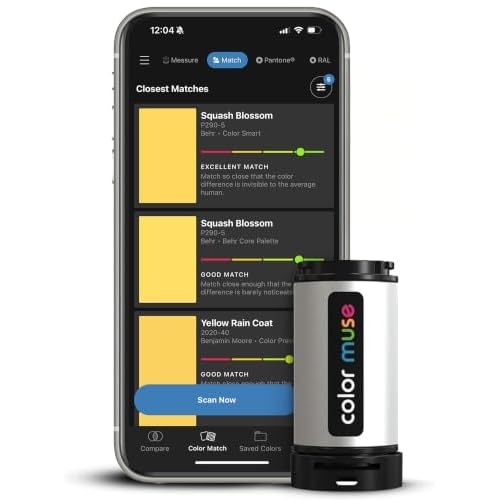


<p.To adjust the tint, utilize the color picker tool available in the materials section. A spectrum of shades will appear, allowing for precise selection. Directly sliding the color wheel or entering specific RGB values can yield exact outcomes based on your design intent.
<p.Once the desired hue is selected, preview the changes on your model in the workspace. If further adjustments are needed, describe it in the materials attributes to refine until satisfied. This iterative process can contribute significantly to the realism and appeal of the visualization.
<p.To apply the new appearance to multiple objects, select them collectively and repeat the process. This ensures a cohesive aesthetic throughout your design. Remember to save the modified materials for future projects, enhancing efficiency.
Selecting the Furniture to Modify
To modify an object within the modeling environment, I first use the selection tool to click on the specific item I wish to alter. It’s crucial to ensure that the desired element is not grouped with others, as unlocking any groups will simplify the process.
Using Layers and Tags
Organizing items using layers or tags can streamline my workflow. By assigning objects to distinct categories, I can hide or reveal specific elements without clutter. This allows me to focus on the elements requiring adjustment.
| Action | Description |
|---|---|
| Select Tool | Activate to identify specific items. |
| Unlock Groups | Helps in isolating the object for easier modifications. |
| Use Layers | Organizes items and controls visibility. |
Checking Component Details
I examine the components to ensure they are unique or instances of groups. This check guarantees that altering one does not unintentionally affect others. Additionally, reviewing material settings can indicate how existing attributes might impact my modifications.
Accessing the Paint Bucket Tool
To utilize the Paint Bucket Tool, locate it in the toolbar or activate it by pressing the ‘B’ key. This option allows me to apply materials and finishes directly to selected surfaces.
Once activated, the following steps assist in effectively using the tool:
- Select the desired material from the Materials panel. This panel typically appears as a floating window on the screen.
- Hover over the surface of the selected item. A preview of the material will display as I move the cursor, giving a sense of how it will appear.
- Click once on the surface to apply the selected finish. For multiple sections, hold the Ctrl key (Cmd on Mac) while clicking to apply the material to additional areas.
For precise applications, I can adjust options in the Materials panel, such as scale and texture. Right-clicking on the material in the panel provides additional choices, including editing or creating new finishes tailored to the project’s needs.
If I want to remove a material, I can select the Material Sampler tool (Eyedropper), click on the surface to sample the existing material, and then apply a default or new material over it, effectively replacing it.
Navigating the Color Palettes
To enhance my model, I typically explore the various palettes available in the materials section. I begin by selecting the “Materials” window, where I discover a plethora of options categorized by type and finish. Each category reveals an assortment of shades and textures, allowing for precise selection.
I often utilize the search function within the materials panel, which helps me quickly locate specific hues or finishes without scrolling through the entire list. For instance, typing “wood” presents me with a variety of wooden textures, perfect for adding realistic details to my designs.
When I find a shade that intrigues me, I click on it for a closer look. This action brings up additional properties, such as transparency and roughness, enabling fine-tuning for that perfect look. Adjusting these parameters can dramatically influence how the material interacts with light, creating a more authentic appearance in the render.
If I want to create a custom shade, I head to the color picker tool. This tool allows me to formulate my unique color by mixing different RGB values. I can visually assess my selections, ensuring they align with the overall aesthetic of my project.
<pLastly, saving frequently used materials in a custom folder within the materials window streamlines my future projects. This ensures easy access and consistency across different models, saving time and effort down the line.
Applying Colors to Different Surfaces
Select specific surfaces within the model. Right-click on the surface you want to modify, which activates the context menu. From here, select “Entity Info.” This will bring up relevant details about the surface, allowing you to choose the section for application.
Utilize the Paint Bucket tool for seamless texture adjustments. After selecting the desired surface, click the Paint Bucket icon and choose the appropriate texture or hue from your palette. Here’s a quick guideline:
- For wood surfaces, opt for materials with a natural grain for a realistic finish.
- Metallic textures work well on fixtures or frames; consider shiny metallics for modern aesthetics.
- Soft fabrics require more subtle tones; choose lighter shades or textures resembling upholstery.
- Glass surfaces usually need transparency settings adjusted. Experiment with the opacity slider for the best effect.
If you aim for a uniform appearance, apply the chosen material across multiple surfaces simultaneously. Hold the Shift key while selecting the additional surfaces and apply the paint to all at once. This ensures consistency across connected sections.
Use layers for complex designs, allowing separate items to be color-adjusted independently. Organizing by layers helps in quickly resetting or altering specific areas without affecting the overall design.
Preview changes in various lighting conditions. Adjust your viewpoint to check how colors interact with the surrounding elements, ensuring the final look aligns with your intended design vision.
Remember to save iterations of your design. Different surface colors might evoke distinct emotions, so keeping earlier versions allows for easy comparisons and further refinements.
Creating Custom Shades for Your Objects
Access the materials panel by selecting the Edit tab after clicking on the desired texture in the Paint Bucket tool. This panel allows you to create unique appearances by adjusting various parameters.
Defining Custom Hues
Within the materials panel, locate the color section. Here, you can customize shades using the RGB sliders or input specific HEX codes for precise adjustments. Each adjustment reflects in real-time on your selected object, enabling immediate feedback.
Applying Textures for Depth
If you want a more complex look, consider combining solid tones with textures. Within the same materials panel, you can upload image files or use pre-existing textures. Experiment with transparency and reflectivity settings to add dimensionality to your designs.
Saving and Reusing Color Styles
I frequently save my selected hues and textures for future projects, which streamlines my workflow and ensures consistency. To save a style, I simply right-click on the material I created or modified in the “Materials” panel and choose the “Save As” option. This allows me to assign a name to the material for easy identification later.
When I want to access these saved materials, I go to the “In Model” tab in the “Materials” window. Here, I can quickly browse through my saved styles and apply them to new components or areas of my project as needed.
If a specific style needs to be shared with others or used across different projects, I export it as a material library. I find this particularly useful when collaborating with team members or when I wish to maintain a uniform look across multiple designs. Exporting is as simple as clicking the “Save as…” button in the “Materials” panel, which creates a .skm file that can be imported into any SketchUp model.
For greater organization, I create folders on my computer to categorize these saved styles according to themes, projects, or types of materials. This structure makes it easier for me to find the right material without wasting time searching through a long list.
Regularly updating and revisiting my saved styles can yield surprising creativity, as I blend elements from previous projects into new designs. By doing this, I not only enhance my skills but also build a rich library of resources that reflects my evolving design approach.
Troubleshooting Color Application Issues
If I encounter difficulties with shade application, I first check if I’ve selected the correct model part. Sometimes, I mistakenly target a group instead of an individual element. To ensure proper selection, I right-click and choose “Edit Group” or “Edit Component” to access the desired surfaces directly.
If shades aren’t applying as expected, I verify the material settings. The “Paint Bucket Tool” may have settings restricting the application, such as being set to “Modify” instead of “Apply.” Changing this to the appropriate mode resolves the problem quickly.
When adjustments to a surface don’t show, I inspect the visibility and layering of components. Hidden layers or components might obscure the changes. I open the “Layers” panel and ensure the appropriate layers are visible and not locked.
I also watch for instances where materials are in conflict. Two materials can’t coexist on the same surface. If there’s a pre-existing texture, I remove it before applying a new one to avoid interference.
If I need a specific hue that’s not appearing, the “Color Palettes” might be filtered, limiting my options. By checking the settings, I make sure all shades are displayed. This step often resolves issues with missing selections.
For persistent problems, restarting the application can refresh the system and clear minor glitches affecting performance. It’s surprising how often this simple step resolves unexpected hurdles.
Lastly, I refer to online forums or the official support page for specific issues related to color application. Many users often share solutions that have worked for them, and I find community input valuable.