
 Caleb Turner

Begin by ensuring the relevant annotation families are loaded into your project. This step can greatly enhance clarity in your plans and views. Look for specific types designed for the elements you wish to identify.
Next, place the appropriate markers around your selected pieces. Utilize the ‘Annotate’ tab to access the labeling tools. It’s crucial to select the correct options that correspond to the elements you want to denote, whether they are modular units, standalone pieces, or custom designs.
Additionally, pay attention to the visibility settings. Adjust the view templates to ensure that these notations are displayed clearly without cluttering your workspace. Customize the display settings to improve legibility, making it easier for viewers to interpret the information.
Finally, consider creating a legend or key, especially if multiple styles or categories are represented. This addition can provide context and facilitate understanding of your documentation. Implementing these practices will lead to more organized and professional presentations of your architectural designs.
Tagging Elements in Your Model
Begin by selecting the component within your workspace. I prefer to use the ‘Annotate’ menu where all labeling tools are located. From there, I select the option to create a new label type specific to the object, ensuring clarity and precision in presentations.

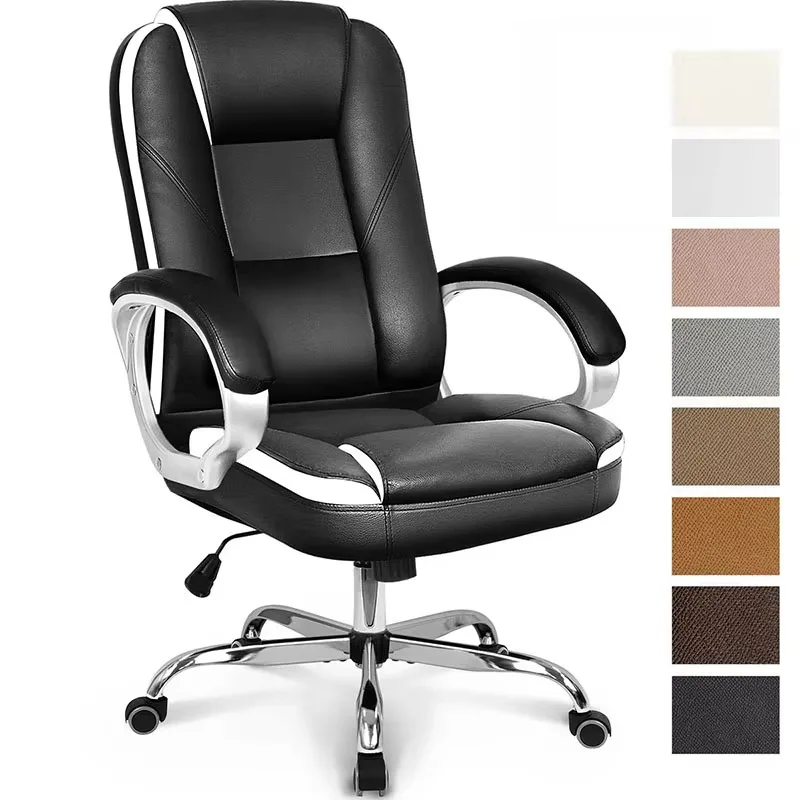

Creating Custom Labels
To craft tailored identifiers, I modify existing label templates or generate a new one directly from the label settings. Setting parameters is crucial; I choose attributes such as name, dimensions, and material to display. This customization enhances the readability and professionalism of the drawings.
Placement and Adjustment
Once labels are assigned, I position them strategically around the objects. Keeping a consistent distance from each item maintains visual balance. If adjustments are needed, I use the alignment tools for straightening and spacing, ensuring everything appears orderly and professional.
Understanding the Tagging Process for Furniture
To accurately label components in a design, I focus on creating specific annotation elements that convey essential information. First, I gather the necessary parameters that need to be displayed. This often includes dimensions, material types, or other characteristics unique to each item.
1. Select the Annotation Family: I always ensure that the annotation I choose is suited to the type of object I’m working with. There are various predefined options in the software library that cater to different needs.
2. Customize Labels: Adjust the label settings based on the attributes I want to showcase. Whether it be size or finish, it’s essential to tweak these settings to reflect the most relevant details. Using the Properties panel, I can specify which parameters will populate the labels displayed in the model.
3. Placement of Labels: I pay close attention to positioning. Proper placement not only enhances readability but also minimizes clutter. Utilizing the alignment tools can assist in achieving a neat arrangement of annotations.
4. Link to Existing Schedules: To streamline information, I leverage existing schedules that contain relevant data. This integration ensures that updates in the model automatically reflect in the annotations. It creates consistency across project documentation.
5. Testing Visibility Settings: Before finalizing, I assess visibility settings to confirm everything appears correctly in various views. Using different viewing options, I can ensure that annotations maintain their clarity and accuracy, regardless of the perspective.
6. Reviewing and Adjusting: After annotating, I revisit my work to make necessary adjustments based on feedback from colleagues. Collaborating helps to identify any areas for improvement and ensures that the annotations effectively communicate the intended details.
By adhering to these steps, I create precise and informative labels that enhance the overall understanding of the design elements. This detailed approach minimizes confusion and ensures that each piece of information serves a purpose in the project’s documentation.
Setting Up Furniture Tags in Revit
To properly configure labels for your pieces within the software, follow this systematic approach:
-
Access Visibility/Graphics:
Navigate to the “View” tab and select “Visibility/Graphics.” Ensure the category containing the objects you need to annotate is checked.
-
Create a New Annotation Family:
Use the “Family” template for your annotations. Choose or modify an existing template that aligns with your project standards.
-
Define Parameters:
Establish shared parameters that encompass critical information such as dimensions, material types, or manufacturer details. This enriches the annotations with relevant data.
-
Design Your Label:
Utilize the label tool within the family editor to insert parameters. Position these labels to ensure clarity and visibility when placed in the model.
-
Load and Place the Family:
After completing your annotation family design, load it back into your project. Place in the required views wherever applicable.
-
Adjust Tag Placement:
Modify the position of the labels on screen for optimal visibility. Utilize the “Align” tool to ensure they are uniformly positioned across similar items.
-
Test Visibility:
Switch between 2D and 3D views to verify that the annotations display correctly in all necessary perspectives. Adjust as needed for readability.
This clear and methodical setup will aid in maintaining project clarity and communication among team members, facilitating accurate documentation of the items.
Customizing Furniture Tag Appearance
To modify the look of your labels, access the “Family Editor” where you can adjust their properties. Begin by selecting the appropriate family for the item you wish to alter. Once in the editor, locate the Label element to change formatting, such as font size and color. This allows for differentiation among various items within your design.
Add additional parameters to your labels from the Properties palette. Parameters like Material and Quantity enhance information conveyed in each label. Align these parameters with your design intent to create clarity in representation.
Utilize detail lines or reference planes to provide spatial context for your labels. This ensures they are placed correctly relative to the objects they identify and avoids any overlap or clutter in complex layouts. Adjusting the positioning can significantly enhance readability.
For visual consistency, consider creating a template for your labels. This standardizes appearance and maintains coherence across different views or sheets. Ensure to regularly update the template as your project evolves.
Lastly, verify that the appearance aligns with your project’s standards by generating a few views for review. Adjust accordingly based on feedback to ensure legibility and professionalism in documentation.
Linking Tags to Furniture Parameters
I utilize the family editor to establish a connection between identifiers and the properties of movable assets. To start, I open the specific family type, ensuring parameters I want to display are correctly defined within it. This can include attributes such as dimensions, materials, or specific identifiers.
Establishing Shared Parameters
To enhance flexibility, I often create shared parameters that can be applied across various object families. By accessing the “Shared Parameters” dialog, I add new definitions and associate them with the family. Once established, users can integrate these shared parameters into their project materials, maintaining consistency and improving data management.
Linking Parameters to the Identifier
Next, I connect the created parameters to the identifier. In the family editor, I navigate to the “Label” option in the properties menu. After selecting the desired parameter from the drop-down list, I then place the label in the appropriate position on the plan view, ensuring it aligns neatly with the corresponding asset. This setup allows automatic updates whenever the parameters are altered in the family type, promoting accuracy across all construction documents.
Using Multi-Category Tags for Mixed Furniture Types
I recommend utilizing multi-category annotations to streamline the marking of diverse furniture elements within your projects. This approach allows for efficient management and ensures every piece is recognized, regardless of the specific category it falls under.
Steps to Implement Multi-Category Annotations
Begin by setting up a multi-category label within your workspace. Navigate to the ‘Annotate’ tab, and select ‘Tag All Not Tagged’ to bulk label items. In the dialog box that appears, choose the multi-category option, which will automate the tagging of varying items in one go.
Another effective method involves creating a custom multi-category annotation. The Family Editor allows you to design specific annotations that communicate essential information relevant to each object type. This is beneficial in office settings where various items require distinct measurements or specifications.
Adjusting Multi-Category Annotations
After establishing the labels, adjustments may be necessary to match the unique characteristics of different elements. Use the properties palette to modify text size, orientation, or visibility settings, ensuring clarity and legibility on the final output.
Furthermore, explore parameter links to enhance usability. By associating additional attributes with your annotations, you can provide a more detailed overview of each item. This can include location, material, or maintenance notes, which can be crucial for facility management.
Incorporate these techniques into your workflow for a streamlined approach to marking mixed elements, enhancing clarity and efficiency in your documentation process.
Editing and Modifying Existing Tags
To adjust existing labels for elements in your design, first, select the label you wish to change. Right-click and choose the ‘Edit Parameter’ option to access its properties. From this dialog, I can modify the parameters displayed, including their order and format.
Updating Text and Format
To change the text or appearance, navigate to the ‘Text’ tab within the label’s properties. Here, I can alter the font, size, and style to match the overall aesthetic of the project. Modifications ensure clarity and enhance presentation.
Managing Parameter Links
To link or unlink parameters in the label, use the ‘Parameter’ section in the properties dialog. I can easily add or remove parameters, tailoring the information displayed according to project requirements. Ensure that the relevant parameters are checked for visibility.
| Action | Steps |
|---|---|
| Edit Parameter | Select label > Right-click > Edit Parameter |
| Update Text Style | Select label > Properties > Text Tab |
| Manage Parameter Links | Select label > Properties > Parameter Section |
After making changes, I always remember to save the modifications and refresh the view to see the updates reflected throughout the project. This ensures consistency and accuracy in all displayed information.
Implementing Tagging Best Practices
Establish consistent naming conventions to maintain clarity across your projects. For instance, using standardized prefixes such as ‘Table-‘ or ‘Chair-‘ can help categorize items systematically. This will enhance searchability within the project and simplify the identification of different elements.
Optimize your parameter settings to streamline the information displayed. Limit the number of parameters to only the most relevant details, which prevents clutter and improves readability on the drawings. For example, if dimensions or material finishes are vital, include those while omitting unnecessary information.
Utilize the visibility settings to control which categories and elements appear in your views. This avoids overwhelming the drawings with too much information and allows for clearer presentations. By controlling visibility, I can ensure that only relevant data is highlighted for each specific audience, whether for design reviews or client presentations.
Incorporate color coding or symbols in your legends to represent various categories. I often create a simple legend table that correlates colors with specific types. This method enhances quick assessments and communication among team members.
| Element Type | Color Code |
|---|---|
| Tables | Green |
| Chairs | Yellow |
| Cabinets | Red |
Review and refine the display settings for each component regularly. Align text sizes and fonts according to the project’s overall aesthetic. Staying consistent in these elements ensures that all components reflect a unified style, aiding comprehension and presentation quality.
Communicate frequently with team members regarding any changes made to the elements or parameters. Feedback and updates help maintain team alignment and integrity in the project’s progress. Regular check-ins ensure everyone is on the same page, contributing to smoother workflows.
Troubleshooting Common Tagging Issues
To address missing annotations in your project, ensure that the specific category you are labeling is included in the view’s visibility settings. Go to the Visibility/Graphics menu (shortcut: VG) and confirm that all relevant categories are checked.
If any labeling appears blank, verify the parameter settings associated with those elements. Open the properties for the object in question and ensure the parameters have been correctly assigned.
- Check the family of the item for correctly defined shared parameters.
- Inspect the visibility of the parameters in the family editor.
Stretched or distorted labels can stem from text settings or associated leaders. Adjust the size or type of text to correct appearance issues.
- Right-click the label and choose “Properties” to access text settings.
- Reposition leader lines, ensuring they connect cleanly to the intended elements.
For discrepancies in displayed data, ensure that the right templates are applied. A misconfigured template may lead to incorrect information being shown.
In case of overlapping or cluttered annotations, consider adjusting the layout or the scale of the view. Sometimes, rearranging the elements provides clearer visibility.
- Regularly review your annotation styles for consistency.
- Make use of more space if the design allows to minimize confusion.
When encountering issues with multi-category labeling, ensure that categories are correctly defined in the project environment. Missing or incorrectly defined types can lead to conflicts.
Review the settings under the Tags section in the Template Editor to ensure that the appropriate tags are selected for use.
FAQ:
What is the process of tagging furniture in Revit?
To tag furniture in Revit, first, you need to ensure that you have the furniture elements added to your model. Once they are in place, switch to the Annotate tab in Revit. Select the Tag tool and choose the category of the tag that corresponds to the furniture elements you want to annotate. After selecting the appropriate tag type, click on the furniture items you wish to tag in your view. Make sure the tag is positioned correctly for a clear representation in your drawings.
Can I create custom tags for furniture in Revit, and how?
Yes, you can create custom tags for furniture in Revit. To do this, go to the Project Browser and find the ‘Tags’ category. Right-click on it and choose ‘New Tag’. Then, you can define the parameters you want to display, such as the furniture name, dimensions, or model number. Customize the appearance of the tag using the properties settings. This way, you can tailor the tags to fit your specific project requirements and improve clarity in your documentation.
What are the benefits of tagging furniture in Revit for project documentation?
Tagging furniture in Revit enhances project documentation by providing clear identification and information on each piece of furniture used in the design. This practice helps in communication among team members and with clients, ensuring everyone understands the specifications. Additionally, it facilitates the process of creating schedules and quantities, which are essential for accurate project management and cost estimation. Tags also assist in maintaining consistency across different views and sheets of the project documentation.
Are there any common issues encountered when tagging furniture in Revit?
Common issues when tagging furniture in Revit include tags not displaying correctly or overlapping with other elements. This can occur if the tag is positioned incorrectly or if the settings are not configured properly. Another issue may arise from missing or incomplete parameter information in the furniture family, leading to tags showing invalid data. To resolve these problems, check the tag settings, ensure the furniture families are properly defined, and adjust the placement of the tags for better visibility in your views.


